
Remote access via RuDesktop.
How to provide remote access to a computer
- For Windows OS it is necessary to follow the link: https://storage.rudesktop.ru/download/rudesktop-2.8.1705-x32.exeFor other operating systems (Linux/MacOs) use the link: https://rudesktop.ru/downloads/
- Run the downloaded rudesktop file rudesktop-x32.exe
By default, all downloaded files are saved in the "Downloads" folder, for example: "C:\Users\user_name\Downloads\rudesktop-x32.exe"Запуск от имени Администратора
We recommend running RuDesktop as Administrator, as shown in the screenshot.

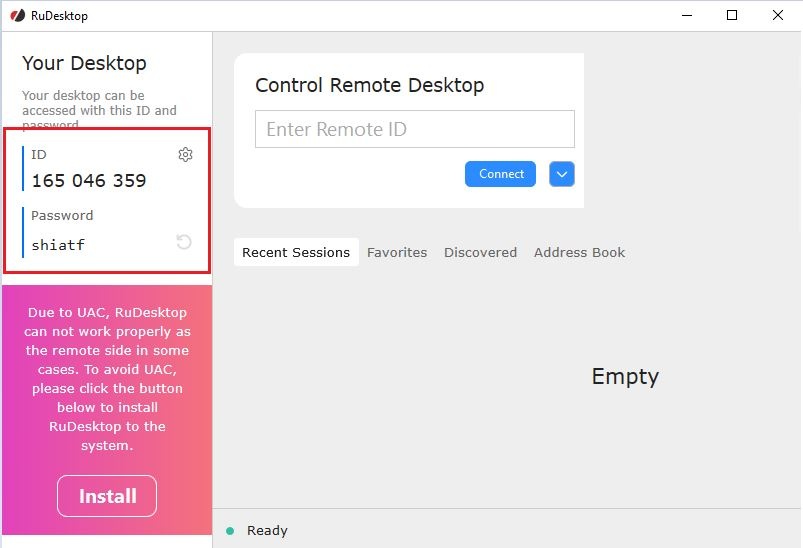
- It will be necessary to send the ID and Password values specified in the "Your Desktop" section to technical support at hotline@guardant.ru (with a description of the problem or screenshots of the error) or call +7 (495) 925-77-90.
How to end a remote work session
To end your remote work session, simply close the program rudesktop-x32.exe.
